


ValueBoard

ValueBoard – Android Whiteboard Software
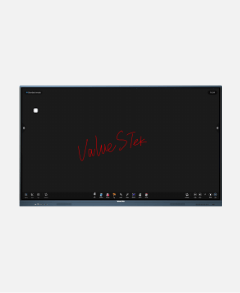
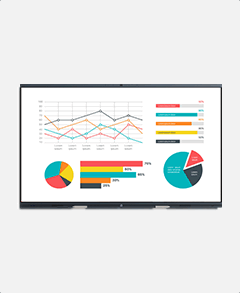
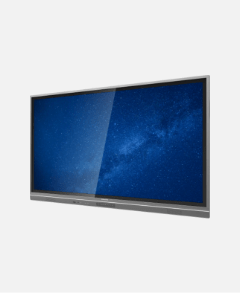
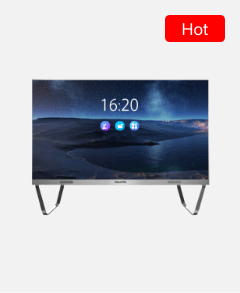
ValueBoard is an Android-based whiteboard software, deeply integrated with ValueHub and can be easily used in any channel. With powerful on-screen annotation, rich tools and easy operation, whether it is used for teaching or conference presentation, it can play an excellent role.
Effortlessly engage by the on-screen tools
You can enjoy the smooth writing experience and extremely fast response speed when annotating on the ValueBoard Android whiteboard software. It provides a variety of writing, erasing and drawing tools, and the written content can be easily shared through QR codes.
Dual-color writing, easy-to-read
ValueBoard Android whiteboard software features smart object recognition, accurately distinguishing between different pens and displaying their writing in different colors. When you teams interact with the ValueHub, their content appears in a unique color, enhancing discussion efficiency and making all information clear and easy to understand.


Unlimited annotation under any channel
Whether in wireless screen sharing mode or connected to another computer, you can annotate on any input channel.
This feature is not limited by operating system compatibility and requires no software installation on the connected devices, making it simple and convenient to use.
Scan to access your meeting minutes
Every ValueHub interactive flat panel helps you run meetings more efficiently. Built-in professional meeting software, intuitive writing and erasing tools, and a range of practical features keep discussions clear and organized.
When the meeting ends, an electronic summary is generated automatically. Simply scan the QR code to instantly access the meeting minutes—making follow-ups, reviews, and information retention effortless.

Various functional tools
work more efficiently
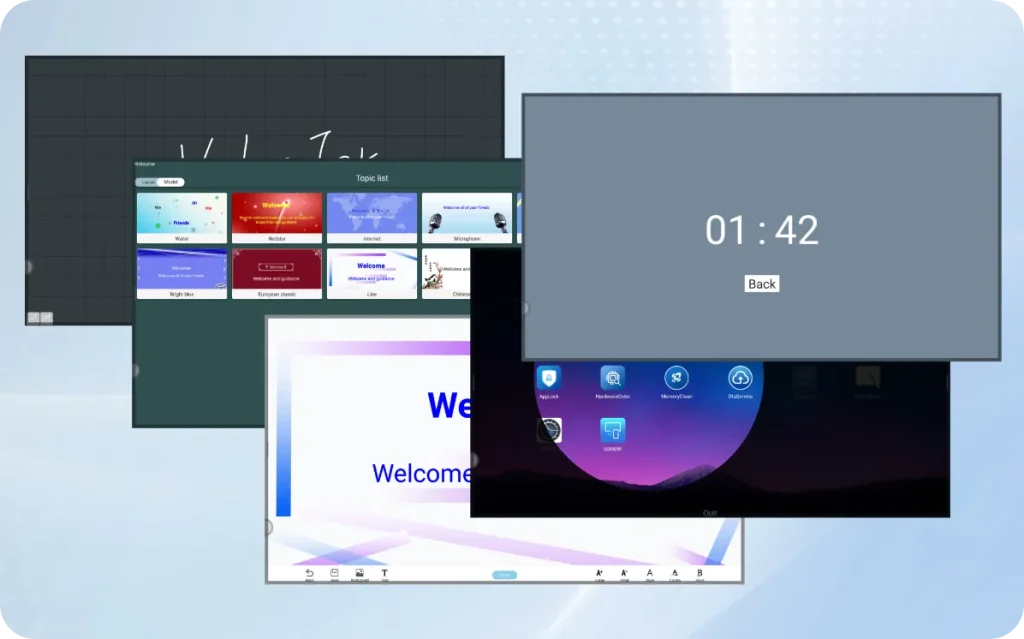
With a variety of productivity features such as welcome wallpaper, different strokes, colors, and thicknesses to make annotation clearer, teams can achieve better and faster results for every project milestone. Everything is synced with all connected participants.
ValueBoard – Android Whiteboard Software
Feature List
1. Interface display
Click the ValueBoard whiteboard icon on the homepage to start the whiteboard software. The default whiteboard brush tool is selected and can be written directly .
2. Menu
Click the icon in the lower left corner of the interface to pop up and display the lower content menu:
Menu content function description:
1) New: create a new whiteboard interface.
2) Open: open the file under the save whiteboard file directory.
3) Save: save the current written content.
4) Save as: save as, and the save function, just save as another file.
5) Import: select the file format to import.
6) Export: select the file format you want to export.
7) Cloud disk: select the type of cloud disk to use, and then you can upload it to the cloud disk.
8) Topic: set the template and background, as shown in the figure.
9) Send email: current whiteboard content will be saved and sent through email
10) Settings: set the eraser mode, open the multi-finger writing, and open the automatic brightness adjustment and custom toolbar.
11) Custom toolbars: unless some tools are locked in the toolbar, set whether other tools are locked in the toolbar.
12) Exit: you will exit the whiteboard application.
13) Share: current whiteboard content will be exported and generate the QR code. You can download the whiteboard file. Users can share the QR code to share the whiteboard file.
14) List: enter the file list. In the current interface, you can create a new file, rename the existing file, view the path, and delete the file.
3. Basic operation
ValueBoard in addition to basic functions such as Select, Pen, Eraser, Clean All, Ruler, Shape, Partition, Table, Browser, Mind map, Globe and more.
1) Select : enter the selection mode from the writing mode, which can realize the movement, color, beautification, formula, search, flip, top, clone, delete, rotation and zoom functions in the interface. For the mathematical formula, the formula OCR can be selected to select the generated function diagram.
2) Pen : enter the writing mode, which is also the default mode after the application is opened. Click again to select the pen type, color and thickness, and click the icon
to expand the color palette to customize the brush color.
3) Eraser :enter the eraser mode. Touch to erase the writing content, and click the icon again to adjust the size of the eraser range.
4) Clean all :Completely clear the writing content and shape of the current page. If you want to restore the cleared content, you can click the icon to cancel the clear operation.
5) Rule : you can choose the type of the long ruler, the right triangle ruler and the protractor, the ruler scale edge can draw a straight line and have a length display, the protractor can measure the Angle and draw the Angle of any Angle.
6) Shape :the whiteboard interface through touch drag to draw the standard graphics, click again to choose the graphics shape, can also switch plane graphics and stereo graphics, but also can customize the color. Click on the icon can be drawn according to their own rough shape for intelligent beautification, into a neat figure.
7) Partition : set it up as the multi-player writing function.
8) Table : touch and drag to select the table size, and click the icon to insert the table.Click the icon to enter the selection mode to drag and edit the table.
9) Browser : opens the browser on the current page.
10) Mind map : inserts an initial brain map into the current page, and editing it by clicking on a node can form a mind map. Click to add a child node in the current node direction. Click will appear a delete query, and the confirmation can delete the current node.
11) Globe :Click on the icon to view the 2D globe.
12) Sticky-Notes :enter the note editor, enter the note content through the soft keyboard, select the color of the note on the side , and click to successfully add the note.
13) Preview : enter the Preview, and zoom the size of the whole page (overall) and move it easy to browse.
14) Grid :insert the Grid, automatic beautification in the four lines of writing, only support English beautification.
15) Star : play the trajectory of the planet.
16) Periodic : view the periodic table of chemical elements, drag or double-click the element to synthesize the compound.
17) Results the recovery : cancel the operation before not save, can be revoked
many times, when you want to withdraw back many times can click the icon to restore the cancellation operation, similarly, can be restored multiple times.
18) Add pages :When we want to add a page, click the icon to add a new page and cut the current interface to the new page.
19) Page selection :When there are multiple pages, you can click and the icon to switch the page, or click to view all the page thumbnail, select a page thumbnail to switch or delete.